This article is republished with permission from Wonder Tools, a newsletter that helps you discover the most useful sites and apps.
NotebookLM is the most useful free AI tool of 2025. It has twin superpowers. You can use it to find, analyze, and search through a collection of documents, notes, links, or files. You can then use NotebookLM to visualize your material as a slide deck, infographic, report— even an audio or video summary.Subscribe
How to set up a notebook
- Pick a purpose. Start a new notebook for a work project or a learning goal. Examples: I created a notebook to organize materials for the new online bilingual MA program we’re developing at the CUNY Newmark Grad School of Journalism where I work. I also set up a notebook to learn more about Gustav Mahler, a composer I revere. I have numerous others for work and personal projects.
- Find sources for your notebook. NotebookLM recently added a search panel to help you discover high-quality sources. You decide which, if any, of the suggested materials to add to your notebook. The “Fast Research” is quick and focused, unlike a generic Google search that returns hundreds of results, some of which have gamed the search engine system.
- Fast Research surfaces 10 or so documents related to your topic in less than 30 seconds. You can ask it to find sources within your Google Drive, or from the Web.
- The Deep Research prompt option in the same panel will more slowly gather many more sources.
Tip: make your query as specific as possible to surface relevant, useful sources. Here’s an example of a concise, precise query I used.
- Add your own materials. Upload files up to 200 MB and 500,000 words into your notebook. You can add:
- Google Docs, Slides, and Sheets
- PDFs, images (including photos of your handwritten notes), and Microsoft Word documents
- YouTube links and audio, image, or video files (it extracts the transcript)
- Website URLs (it extracts the text)
No other AI tool I’ve used lets you compile as many different kinds of materials in a centralized AI workspace that’s easy to explore and build with.
- Free accounts can create up to 100 notebooks, with 50 sources in each. On a free plan, you may run into limits when creating multimedia materials. You can run free 10 Deep Research queries a month. Students in the U.S. 18 or older can get pro access for free.
- Pro accounts, which cost $20/month as part of Google AI Pro, can host 500 notebooks with 300 sources in each. They can run 20 Deep Research queries a day.
Collaborate and share
NotebookLM now lets you collaborate as you would with Google Docs. You can choose to invite people as viewers or editors. Give them a full view of your sources and notes, or limit their access to the search/chat interface.
You can also publish notebooks publicly. Here are some examples:
- Trends in health, wealth and happiness by Our World in Data
- How to build a life, from The Atlantic
- Shakespeare’s Complete Plays
- Parenting Advice for the Digital Age, by Jacqueline Nesi, PhD of Techno Sapiens
- Earnings Reports for the World’s 50 Biggest Companies
- Secrets of the Super Agers by Eric Topol
Explore your materials
As you add materials, NotebookLM analyzes them and suggests relevant questions. After I uploaded biographical material about Mahler, it suggested search queries—based on the source documents—about why he converted to Catholicism and what poetry collections inspired him. You can also ask any question on your mind or type in any kind of traditional search query.
NotebookLM uses natural language processing to make sense of your documents. When you type in a query, the system understands what you’re looking for. When I queried about the death of Mahler’s loved ones, I didn’t have to mention their names or even their relationship to him—NotebookLM understood what I was asking. These exploratory searches are more powerful than old-fashioned keyword searches, which only work if an exact word combination appears in your document. NotebookLM makes it easy to run abstract queries as well, searching for moments of anger or surprise.
Tip: target specific sources. You can use the checkboxes next to each source to limit your search to particular documents. This precision is handy when you want to search within a specific report or compare information across just two or three key documents.
Visualize information
Use the Studio tab to create shareable reports, slides, graphics, and multimedia out of your notebook material. Unlike other AI tools, NotebookLM’s creations are grounded in your source documents—they don’t pull from the Web or generic training data. Because they draw only from your source material, the creations will change as you add more to your notebook, or if you mark only a subset of sources to be used.
Create a mind map first to get an overview of the topics covered in a notebook. Then create the following elements to understand and share your material.
Infographics
Create polished visual summaries. Choose whether you want a landscape, portrait, or square image, and how simple or detailed it should be. Then type in an optional custom prompt to guide the design. You can include instructions about your preferred color palette, target audience, illustration style, and the kinds of numbers or facts to prioritize.
A caveat: NotebookLM consistently produces clean, readable text. It’s mostly accurate, but I’ve encountered occasional errors. Here’s an example: Mahler’s age of death is wrong at the bottom of this NotebookLM infographic.
Slide decks
NotebookLM’s newest capability—generating slide decks—continues to surprise me. When I ask it to make slides summing up notebook material—it comes up with outstanding results, like this slide deck about Mahler.
You can choose between detailed standalone slides, or simpler TED-style presenter slides meant to accompany a verbal presentation. As with the infographic tool, you can just press the slide deck button to let NotebookLM decide what to generate. But you’ll get something more relevant to you if you write a prompt to guide the visual style and subject matter focus. The slides include a small NotebookLM watermark in the bottom right corner.
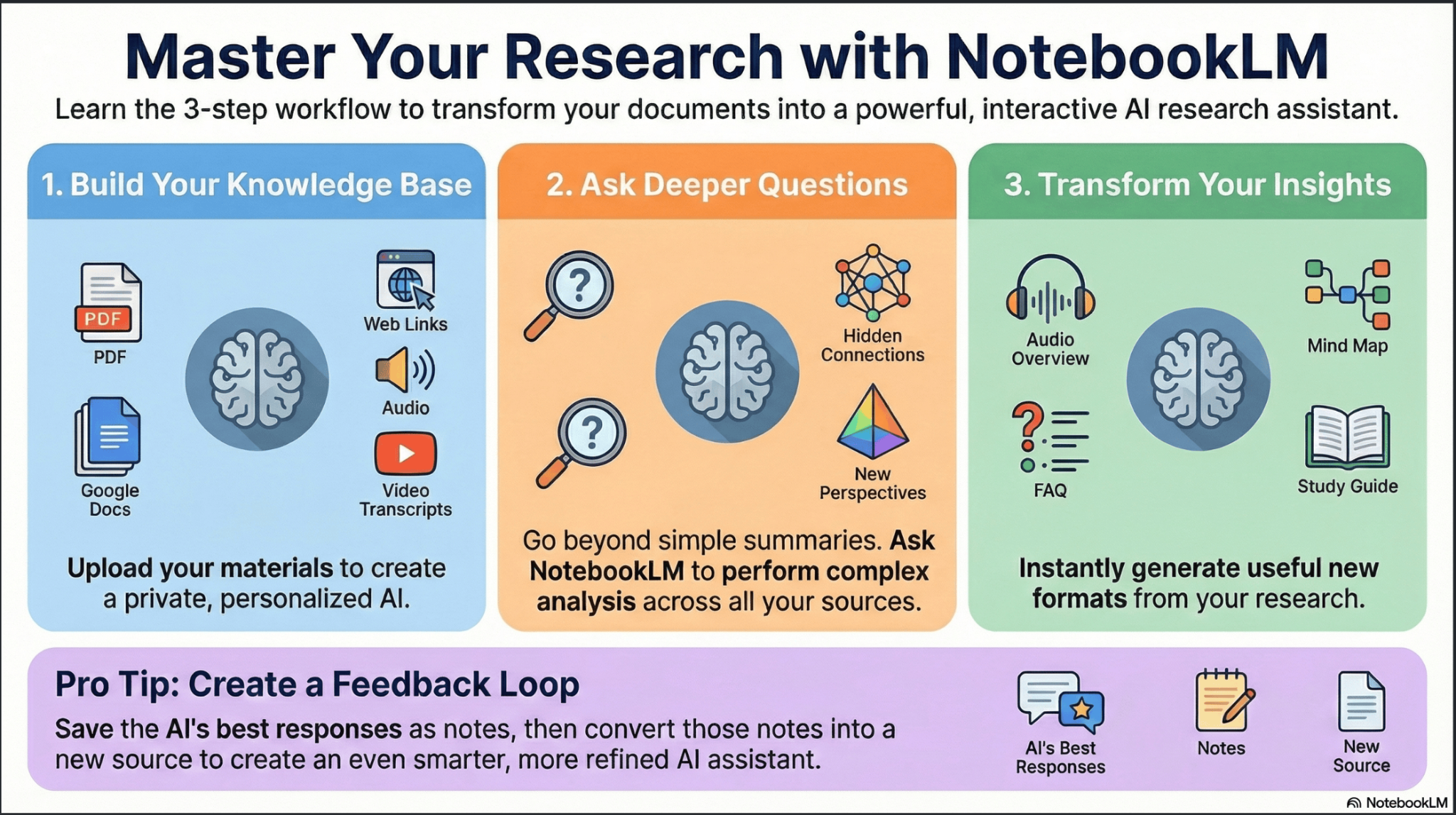
Below is an example of a slide deck about NotebookLM I created with NotebookLM.
source https://www.fastcompany.com/91467915/notebooklm-guide-google-docs
Discover more from The Veteran-Owned Business Blog
Subscribe to get the latest posts sent to your email.

You must be logged in to post a comment.